COURSES & TRAINING: LOGIN

Dave Morrow Photography

MASTER LANDSCAPE PHOTOGRAPHY & HIKING | EXPERT INSTRUCTION

  • PHOTOS
  • PHOTO GUIDES & VIDEOS
  • HIKING GEAR & SKILLS
  • WORKSHOPS

Photography Printing Tutorial – Perfect Photo Prints in 10 Minutes Flat!

Learn to to sharpen, prepare and print your pictures in 10 minutes or less, with this free video tutorial and step by step printing guide.

Stop guessing and start getting the results you want!

Photography Printing Tutorial

Step-by-Step Quick Reference Guide Provided Below Video

Step By Step Printing Workflow

Watch the Video Above for Specific Settings & Information

Step 1:  Color Correct Your Computer – I use and recommend the Datacolor Spyder4Elite. This is the only way to have your prints match the image you see on your computer screen. I calibrate my screen once every 6 months. It’s all automatic and very easy to use!

Step 2: Export Image from Lightroom as full size TIFF in Adobe RGB or Pro Photo RGB color space.

Complete the Following in OneOne Perfect Resize

Step 3: Download / Open OnOne Perfect Resize – Perfect Resize allows you to size, prepare, and sharpen your image for the exact output you’ll be printing at. For example, if you want to send a 24″X36″ print, you’ll need to sharpen and prepare that print for this exact size.

OnOne Perfect Resize can be purchased as a stand alone program or as part of OnOne Photo Suite

Click Here & Purchase the Stand Alone Version of Perfect Resize

Click Here & Purchase OnOne Photo Suite, including Perfect Resize

Step 4: Select your print output size as shown in the video.

Step 5: Apply sharpening settings as shown in the video.

Step 6: If you’re going to print a “Thin Wrap ” select Gallery Wrap and apply 0.5″ thickness. If you’re going to print a standard print you don’t need to apply the Gallery Wrap.

Step 7: Select “Save & Close”. Your new file will be saved for the next step.

Complete the Following in Bay Roes Economy

Step 8: Download Bay Roes Economy – Click Here & select “Launch Economy” at the bottom of the page. If you’re not already a Bay Photo Member joining will take 1-2 minutes. You can join from inside the Bay Roes Application.

Step 9: Open your file that you prepared in OneOne Perfect Resize.

Step 10: Select your print format, size, so on. Reference the video for exact selections.

Step 11: Send / Upload Your Photo to the Bay Photo Servers. You’re done!
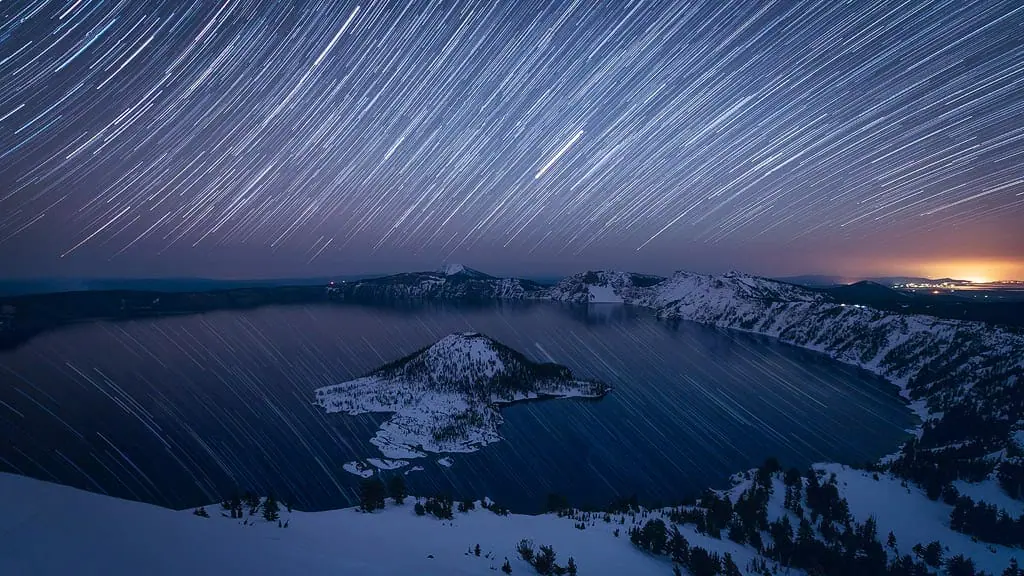
Star Trails Photo Editing Video Tutorial & Step By Step Instructions

photo editing, lightroom tutorials, photoshop tutorials, photography tips, photography post processing

This simple to understand, 10 minute, step-by-step tutorial and post-processing video show you exactly how to edit star trails photos from start to finish.

My Free Star Trails Shooting Tutorial teaches the best camera settings, focusing techniques, and planning tools used to capture these images.

Video – Editing Star Trails in Lightroom & Photoshop

Lightroom Editing

Step 1: Load all images into a RAW photo processor of your choice such as Lightroom or Adobe Camera RAW.

Step 2: Adjust a single exposure out of the series to get the white balance, darks, lights and all of the other settings to mimic what you would like to see in your final image.

Step 3: Sync all of your other images from the shoot to match this image. This is very easy using the “Sync” option in Lightroom, shown in the video.

Step 4: Export all of your files to JPEG, TIFF or whatever other format you like.

Photography Tip: If you choose TIFF and plan to export a few hundred picture files you either need a really fast computer with lots of RAM.

Photoshop Editing

Step 5: Layer all of the files on top of each other in Photoshop as layers. I like to use Adobe Bridge to do this using the “Load Files into Photoshop as Layers” function.

Step 6: Select all of the picture layers in Photoshop EXCEPT the bottom one. With the noted layers / photos selected, Change blend mode to Lighten.

Step 7: You should now see a picture that mimics one long star trail for each star location.  I go on to do many different other adjustments to this image after completing the steps above, but that’s for another tutorial.

Step 8: Apply noise reduction as needed, using my Simple, Powerful Noise Reduction for Star, Milky Way & Night Photography Video Tutorial.

Dave’s Star Photography Photoshop Actions, Luminosity Channels & Bonus Video Tutorial

photo editing for milky way and night photography photoshop tutorials

UPDATE JANUARY 2026: I am currently updating these actions / videos to reflect my current techniques and methods.

They will be back up later in this year or early next.

If you would like a notification when the new actions and videos are up, submit your email in the box below.

I’ll also send you a bunch of free tutorials and PDFs:)

With 100 Star Photography Actions and Bonus Video Tutorial you’ll learn start to finish Photoshop photo editing for Milky Way & night sky photography. I use these actions to edit each one of my star photos.

The Ultimate Package – 60$

If you’re a beginner at Photoshop I provide a bonus Photoshop Basics – Layer Masking Video Tutorial as part of this package, so you’ll have everything you need.

No matter your skill level this package has you covered with over 100 Actions & 50 Minutes of in-depth video instruction.

What You Receive with Your Download

  • All Items in the Apprentice Package + The following.
  • Additional 20+ Minute Video Tutorial showing you how to use the Star Photography Luminosity Channels in your own workflow. This video contains concepts that are unique and can’t be found anywhere else online. I’ve created & perfected these unique luminosity channels over the past 2 years of post processing star photos. They are the most powerful star photography tool out there! Effective & Powerful, yet easy to use, You’re going to love them!

Bonus Material

  • 25 Bonus Star Photography Photoshop Actions
  • 48 Under the Stars Lightroom Presets (Lightroom 4 and Newer) – 10$ Value
Click Here & Purchase the Ultimate Package

Answers to Frequently Asked Questions

Question: Do I need to have any Photoshop experience to effectively use these actions?

Answer: No, you can be a beginner opening Photoshop for the first time and get great results with these actions. You can also be an intermediate or expert Photoshop user and get just as much out of the actions.

I’ve designed them allowing beginners to get great results with the click of a button, intermediate users can tweak and adjust the different user input settings to get desired results of their own, and experts can use the included luminosity channels actions to adjust the settings even more for complete over all control of their photos.

Not only will you get great results, you’ll also learn the tricks I use to get these results within Photoshop!


Question: Which version of Photoshop is required for the actions?

Answer: You can use and install these actions on Photoshop CS3 & newer, including Photoshop Creative Cloud. These actions will not work with Photoshop Elements.


Question: Why would I want to purchase actions?

Answer: When You edit / post process star photos, there are certain tasks which are done on a consistent basis, such as increase the contrast or brightness of just the Milky Way or stars, selectively add color, contrast, glow, or saturation, apply noise reduction, and many other techniques.

Although these tasks are easy to say, they take 5-10 different selections or clicks of a button within Photoshop to complete. This can really destroy your artistic process.

Using these Photoshop actions you can perform these same tasks with just one click of a button and get great results every time. This allows the you to concentrate more on your artistic workflow and less on the actual labor of performing these tasks. Keep in mind, you can adjust each action to suit your exact needs if required!


Question: What is the difference between Dave’s Star Photography Post Processing Video Tutorial & Dave’s Star Photography Photoshop Actions & Bonus Video Tutorial contained on this page?

Answer: I recorded my Star Photography Post Processing Video Tutorial in early 2014 & still use the exact same skill sets taught within the video.

As I continued to improve my workflow with the use of Photoshop Channels and Actions it was necessary to provide my Star Photography Photoshop Actions & Bonus Video Tutorial which teaches my most up to date methods of post processing. This is an additive video.

Each of these videos can be watched alone, or combined for a unique, powerful and easy to learn workflow!

By mastering the skill sets taught in both video tutorials you will be able to see the exact skills I use to edit photos of the Night Sky. Each set of tutorials are unique and don’t provide overlapping information!

Over all the Star Photography Post Processing Video Tutorials teach very technical Photoshop skill sets which are imperative to know, while the Star Photography Photoshop Actions & Bonus Video Tutorial are not as technical, but do provide a very easy to implement workflow for any level of photographer.


Questions?

The Dave Morrow Photography Support Team is Happy to Help

Contact: Support@DaveMorrowPhotography.com

[ssbp_hide]
  • « Previous Page
  • 1
  • 2
  • 3

About Dave Morrow

  • About Dave Morrow
  • Ideas Blog
  • Photography Gear
  • Hiking & Backpacking Gear


Star & Night Sky Photography Guides

  • Milky Way & Star Photography Guide
  • Star Trails Photography Guide
  • Northern Lights Photography Guide
  • Recommended Cameras & Lenses for Night Photography
  • eBook – Photograph the Night Sky

Camera Technique & Shooting Guides

  • Sharp Focus Photography Guide
  • Shutter Speed Photography Guide
  • F-Stop & Depth of Field Photo Guide
  • ISO Photography Guide
  • Exposure Triangle Photography Guide
  • Camera Sensor Size & Image Quality Guide
  • Color Theory Photo Guide


Copyright © 2009–2026 Dave Morrow Photography LLC, All Rights Reserved | Contact | Terms of Service | Privacy Policy